How to Stop Pop-Up Ads on Your Computer System: Step-by-Step Guide
How to Stop Pop-Up Ads on Your Computer System: Step-by-Step Guide
Pop-up ads on your computer can disrupt workflow, slow performance, and even harbor malware. In 2025, they often stem from browsers, apps, or system notifications. This guide covers blocking them on Windows and macOS using built-in tools, extensions, and scans. We'll focus on browsers like Chrome and Safari, as most ads appear there. Always back up data before changes.
For Windows
Windows pop-ups can come from browsers or system ads. Start with browser settings, then tackle apps and notifications.
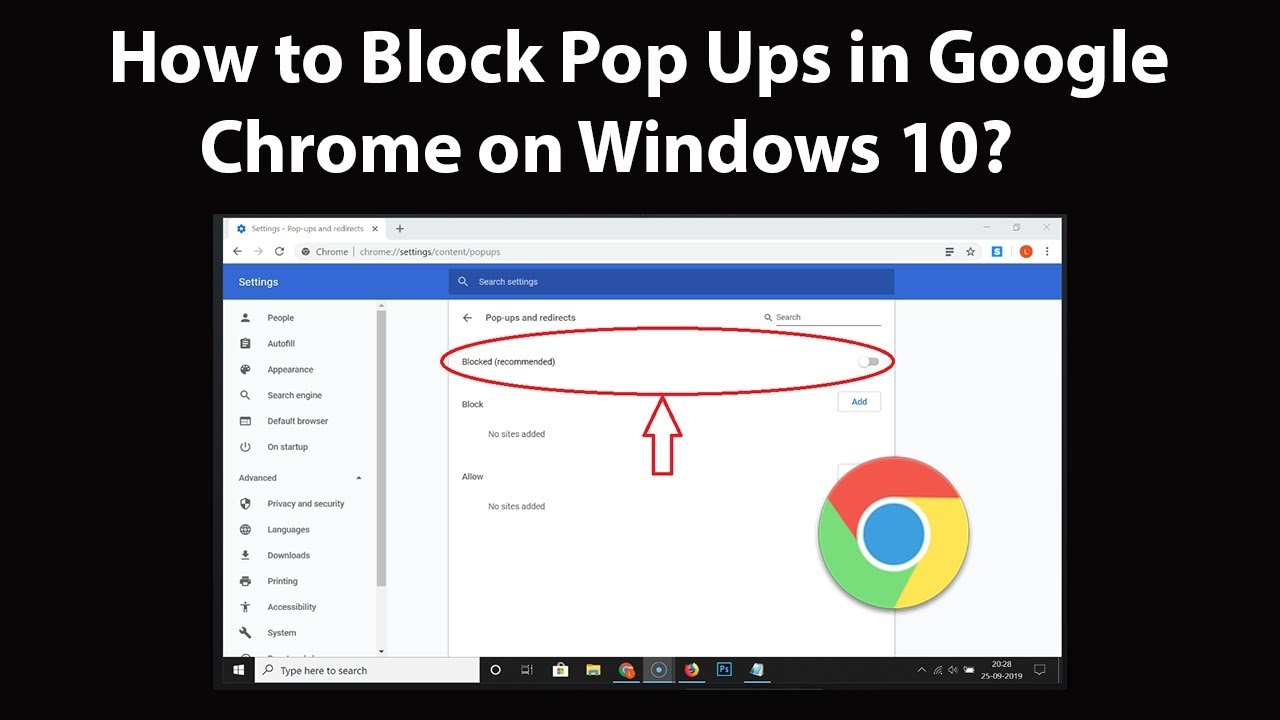
- Block Pop-Ups in Chrome: Open Chrome > Click three dots > Settings > Privacy and security > Site settings > Pop-ups and redirects > Toggle to Blocked. For intrusive ads, go to Ads > Block on sites with intrusive ads.
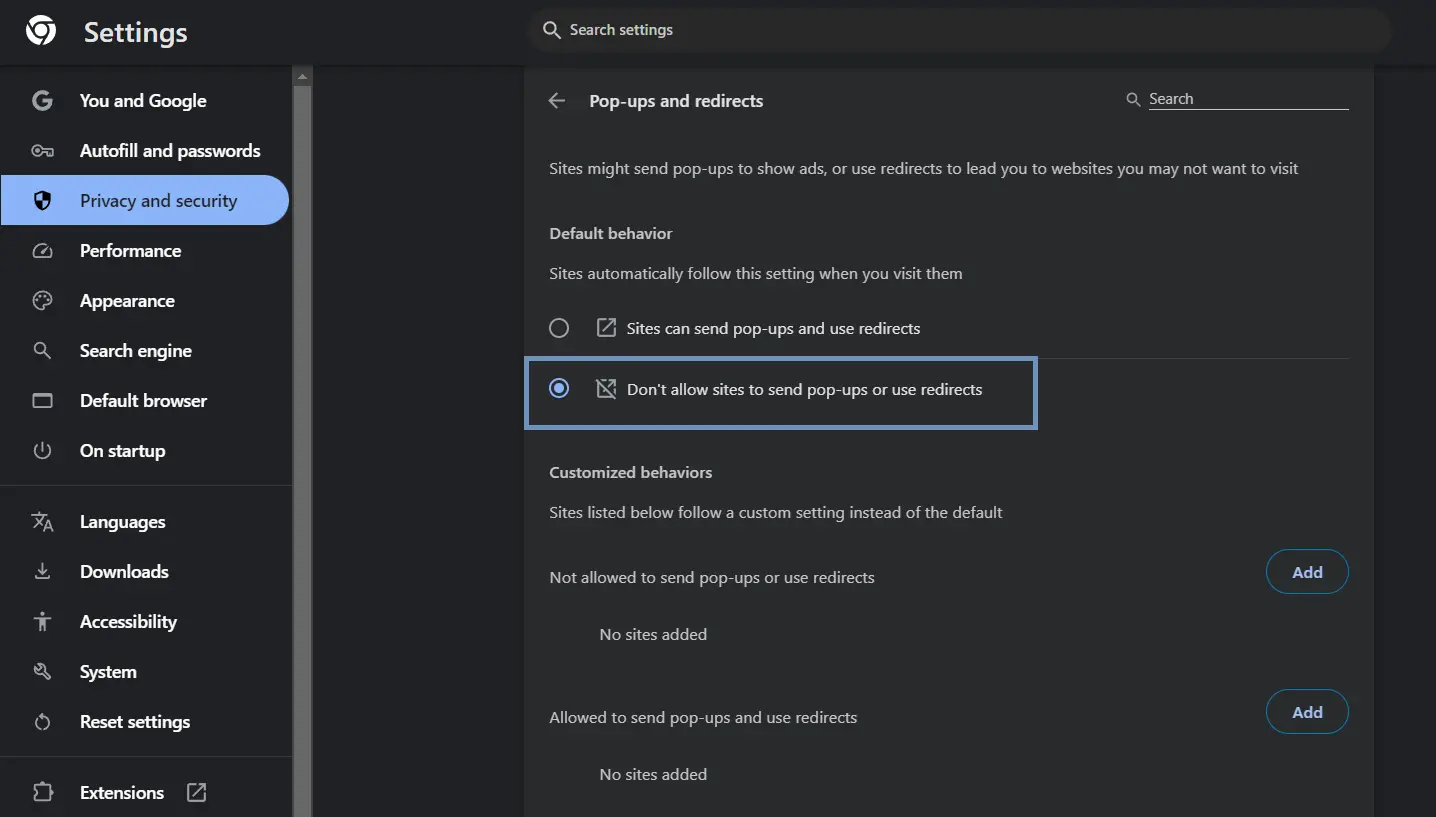
This shows the Chrome pop-up blocker interface.
- Install an Ad Blocker Extension: In Chrome Web Store, search for "uBlock Origin" or "AdBlock." Install, enable, and customize filters.
Extension installation step visualized.
- Remove Suspicious Apps: Settings > Apps > Installed apps > Sort by install date > Uninstall adware-like apps (e.g., free tools with ads). Reboot.
- Turn Off System Ads: Settings > System > Notifications > Turn off "Get tips and suggestions." For Start menu: Settings > Personalization > Start > Disable suggestions.
- Scan for Malware: Use Windows Security (Settings > Privacy & security > Windows Security > Virus & threat protection > Scan options > Full scan).

Full malware scan process.
For macOS
On Macs, Safari handles most pop-ups, but adware can lurk in apps or profiles.
- Block Pop-Ups in Safari: System Settings > Safari > Toggle "Block pop-up windows." For sites: Websites tab > Pop-up Windows > Block and Notify.
- Install a Content Blocker: App Store > Search "AdGuard" > Install > System Settings > Safari > Extensions > Enable.
- Remove Malicious Apps and Profiles: System Settings > General > Login Items > Remove suspects. For profiles: System Settings > Privacy & Security > Profiles > Delete adware ones.
- Clear Cache and Data: Safari > Settings > Privacy > Manage Website Data > Remove All.
- Scan with Malware Tool: Use built-in XProtect or download Malwarebytes > Run scan > Quarantine threats.
Tips: Use a VPN for extra ad filtering. Avoid shady sites. If issues persist, reset browser. These steps should zap most pop-ups—happy browsing!


Comments
Post a Comment