How to Stop Pop-Up Ads on Your Smartphone: Step-by-Step Guide
How to Stop Pop-Up Ads on Your Smartphone: Step-by-Step Guide
Pop-up ads on your smartphone can be a real nuisance, interrupting your browsing or even signaling malware. In 2025, with apps and browsers smarter than ever, blocking them is straightforward on both Android and iPhone. These ads often stem from shady apps, browser settings, or websites. I'll walk you through proven steps based on official guides, covering built-in tools and extras like ad blockers. Let's reclaim your screen—start with the basics and escalate if needed.
For Android Devices
Android's flexibility means ads can sneak in via apps or Chrome. Here's how to tackle them:
- Check and Remove Suspicious Apps: Pop-ups often come from recent downloads. Go to Settings > Apps > See all apps. Sort by recently installed, tap suspicious ones (e.g., those with ads), and uninstall. Restart your phone to test.
- Enable Safe Mode to Identify Culprits: Press and hold the power button, then long-press "Power off" until "Reboot to safe mode" appears. Tap OK. If ads vanish, a third-party app is the issue—uninstall in normal mode.
- Block Pop-Ups in Chrome: Open Chrome > Menu (three dots) > Settings > Site settings > Pop-ups and redirects > Toggle to Blocked. Also, under Ads, block intrusive ones.
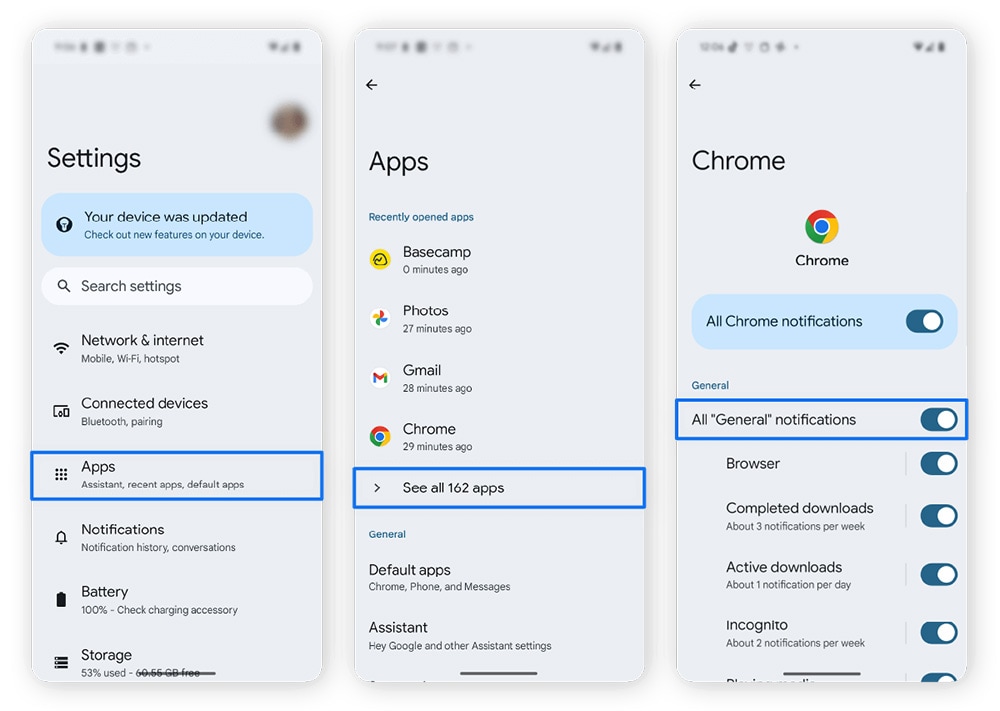
This shows Android ad-blocking settings in action.
- Install an Ad Blocker: Download AdGuard or uBlock Origin from Google Play. Enable it in Settings > Accessibility for system-wide blocking. For free options, try DNS-based blockers like Blokada.
- Scan for Malware: Use built-in Google Play Protect (Settings > Security > Play Protect > Scan). If persistent, try apps like Malwarebytes.
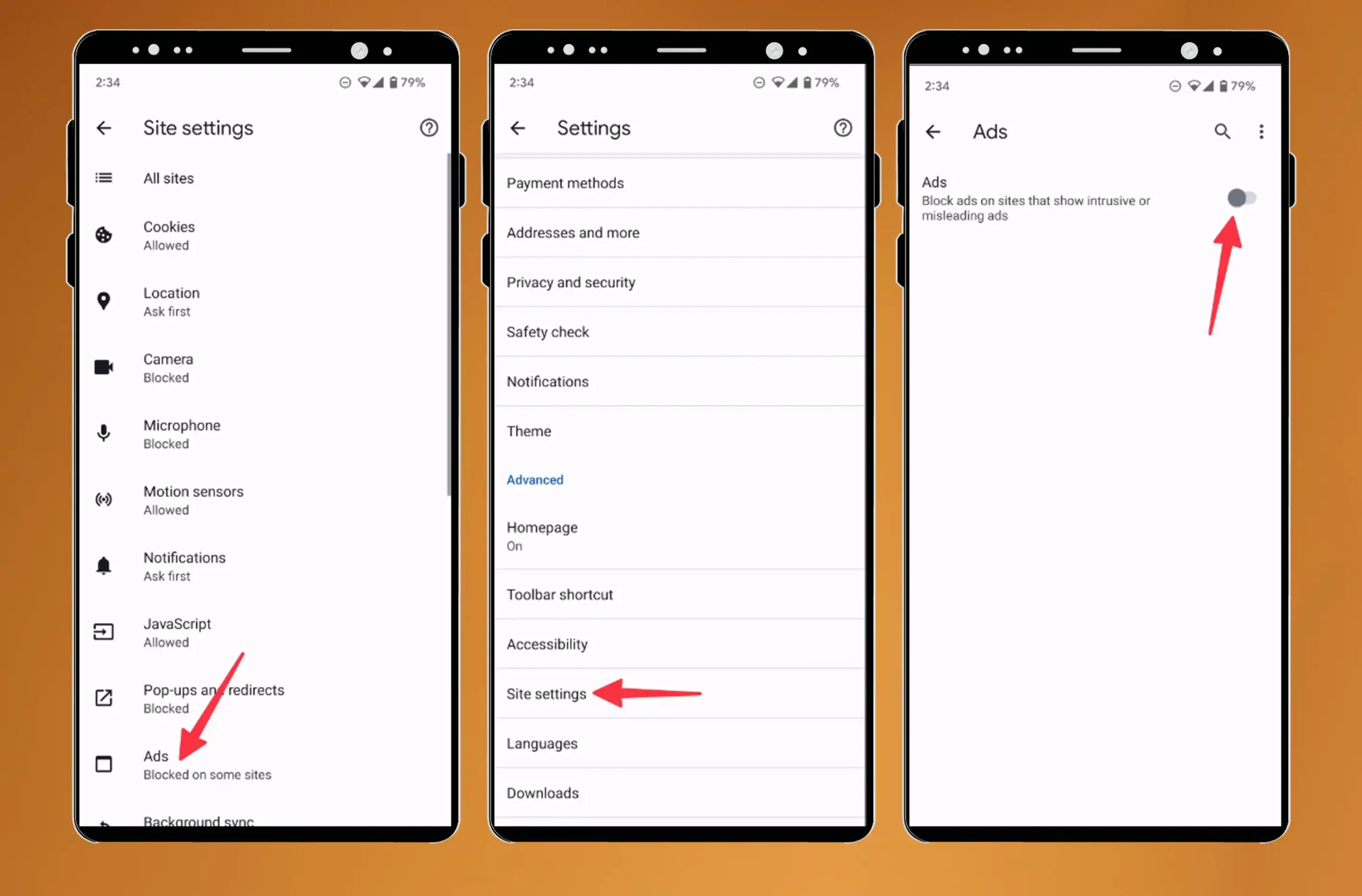
Visual guide to app removal.
For iPhone Devices
iOS is more locked down, so pop-ups mostly hit Safari or apps.
- Block Pop-Ups in Safari: Go to Settings > Safari > Toggle "Block Pop-ups" on. Also enable "Fraudulent Website Warning."
- Manage App Permissions: Settings > Privacy & Security > Check Location, Microphone, etc., and revoke for ad-heavy apps. Uninstall suspects via home screen long-press.
- Use Content Blockers: Download AdGuard or similar from App Store. In Settings > Safari > Extensions, enable it.

Safari pop-up blocker toggle.
- Opt Out of Personalized Ads: Settings > Privacy & Security > Apple Advertising > Turn off "Personalized Ads."
- Reset Advertising ID: In the same menu, reset your identifier to limit tracking.
If ads persist, reset your phone or consult support. Pro tip: Use a VPN with ad-blocking like Surfshark for extra protection. As someone who's battled these, starting with browser settings fixes most issues. Stay ad-free and browse happily!


Comments
Post a Comment